What is the fastest way to type Arabic on Windows?
There are two ways to type Arabic on Windows, and both are free:
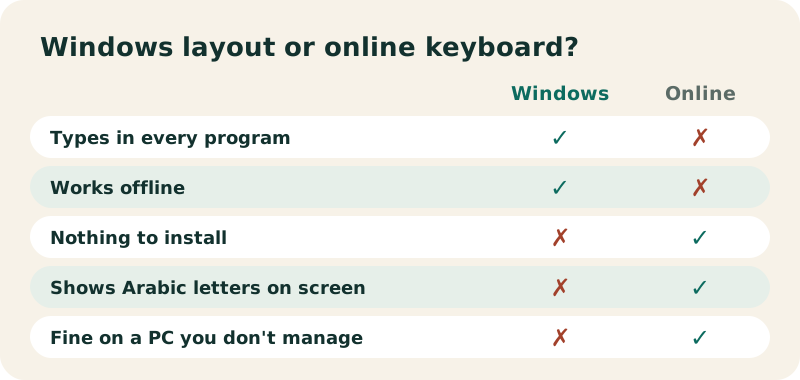
- Add the Arabic keyboard layout to Windows. It takes two minutes, works in every program (Word, Outlook, your browser, games, chat apps) and works offline. This is the right choice if you write Arabic often.
- Use an online Arabic keyboard, like the one at the top of this page. Nothing to install, and you see the Arabic letter on every key. Ideal on a work or school PC where you cannot change settings.
Microsoft's support page applies to both Windows 11 and Windows 10. The menus differ slightly, so each version has its own steps below.
How do you add the Arabic keyboard in Windows 11?
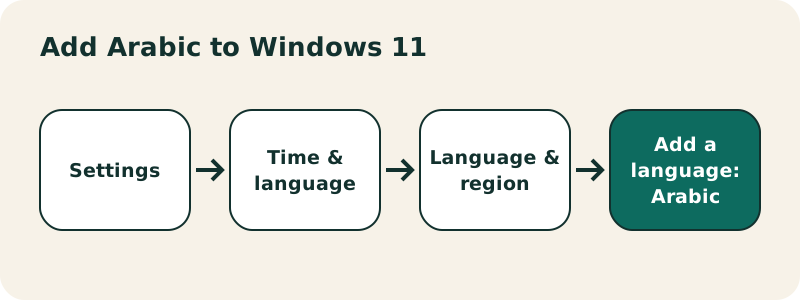
- Select Start, then Settings.
- Select Time & language › Language & region.
- Next to Preferred languages, select Add a language.
- Type Arabic in the search box, pick the variety you want and select Next.
- In Install language features, choose the options you need, then select Install. Wait for the download to finish.
Microsoft's own wording for step 3:
“Select Add a language next to Preferred languages in the Language & region window.”
Only tick "Set as my Windows display language" if you want the whole interface in Arabic. Adding a keyboard never changes your display language on its own.
How do you add only the Arabic keyboard layout, without the language pack?
Microsoft points out that you do not always need the full language pack to get a keyboard layout. In Windows 11:
- Open Settings › Time & language › Language & region.
- Select the ellipses (…) next to a language, then Language options.
- Under Keyboards, select Add a keyboard next to Installed keyboards.
- Pick the Arabic layout in the list.
The list starts with layouts for the selected language. If Arabic layouts are not listed, Microsoft's advice is to start again from the matching language, which means adding Arabic first as in the previous section.
How do you add Arabic in Windows 10?
- Select Start › Settings › Time & language › Language.
- Under Preferred languages, select Add a language.
- Search for Arabic, select it and select Next.
- Choose the optional features you want, then select Install.
- To add only a layout: under Preferred languages, select a language, then Options › Add a keyboard.
Keep in mind that Microsoft ended support for Windows 10 on October 14, 2025: the steps still work, but the system no longer gets security fixes.
Which Arabic layout should you choose?
Windows offers several Arabic layouts. Microsoft's keyboard list includes Arabic (101), Arabic (101, Legacy), Arabic (102) and Arabic (102) AZERTY.
| Layout | Who it suits |
|---|---|
| Arabic (101) | The usual choice with a US or UK QWERTY keyboard. It is the layout of the keyboard on this site. |
| Arabic (102) | A variant with a few keys moved; pick it only if your physical Arabic keyboard is printed that way. |
| Arabic (102) AZERTY | For French AZERTY keyboards, common in North Africa. |
Whatever Arabic variety you add, check which layout was installed under Language options › Keyboards, and add or remove layouts there.
How do you switch between English and Arabic?
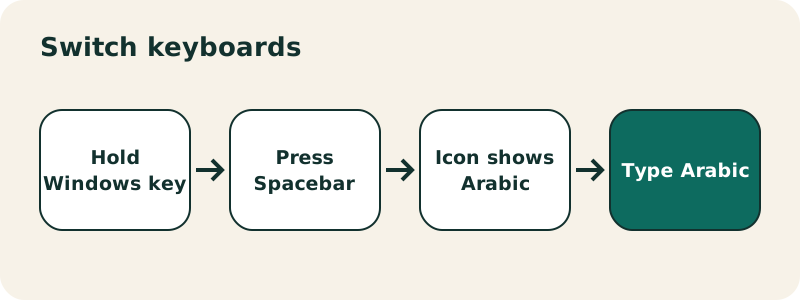
- Windows logo key + Spacebar: cycles through installed layouts. If nothing happens, only one layout is installed.
- Alt + Shift: Microsoft's Office help also documents this shortcut to toggle through installed keyboards.
- Taskbar: click the input language icon in the system tray; it shows the current layout. Pick the keyboard you want.
“To change the current keyboard language click the Language bar and select the language you want, or press ALT + SHIFT to toggle thru the list of installed keyboards.”
Where are the Arabic letters on a QWERTY keyboard?
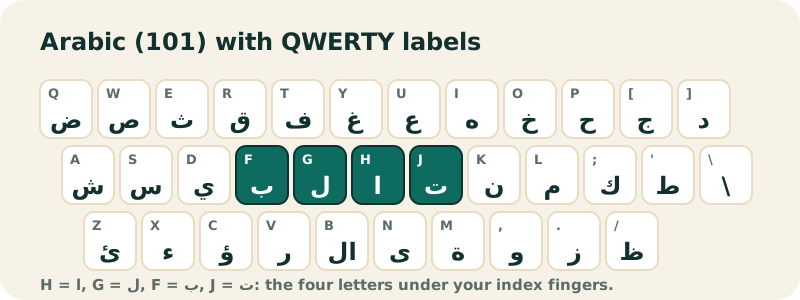
Your keys still show English letters, so you need a map. The keyboard at the top of this page shows each key's QWERTY label next to the Arabic letter, and the table below lists them all (with the Shift layer in the third column):
| QWERTY key | Arabic letter | With Shift |
|---|---|---|
` | ذ | ـّ |
Q | ض | ـَ |
W | ص | ـً |
E | ث | ـُ |
R | ق | ـٌ |
T | ف | لإ |
Y | غ | إ |
U | ع | ‘ |
I | ه | ÷ |
O | خ | × |
P | ح | ؛ |
[ | ج | < |
] | د | > |
A | ش | ـِ |
S | س | ـٍ |
D | ي | ] |
F | ب | [ |
G | ل | لأ |
H | ا | أ |
J | ت | ـ |
K | ن | ، |
L | م | / |
; | ك | : |
' | ط | " |
Z | ئ | ~ |
X | ء | ـْ |
C | ؤ | } |
V | ر | { |
B | لا | لآ |
N | ى | آ |
M | ة | ’ |
, | و | , |
. | ز | . |
/ | ظ | ؟ |
Stickers for keycaps exist, but most people learn the home row in a few days: ش س ي ب ل ا ت ن م ك ط on A to the apostrophe. Practise it with the Arabic typing test.
How do you type harakat and Arabic punctuation on Windows?
With Arabic (101) active, hold Shift: Q fatha, E damma, A kasra, X sukun, ` shadda, W, R and S for tanwin. Shift+K gives the Arabic comma ،, Shift+P the semicolon ؛, Shift+/ the question mark ؟. Full explanations: Arabic keyboard with harakat.
How do you write Arabic in Word on Windows?
Switch to Arabic and type. Word detects the language; Microsoft explains that the Right-to-left paragraph button (Home tab, Paragraph group) appears once a right-to-left language is enabled, and lets you set the direction of each paragraph. For a few characters only, Microsoft also mentions the Character Map, which lets you copy a character without switching keyboards.
How do you remove the Arabic keyboard?
- Open Settings › Time & language › Language & region.
- Select the ellipses (…) next to the language that holds the keyboard, then Language options.
- Under Keyboards, select the ellipses next to the Arabic layout, then Remove.
To remove the whole language instead, select the ellipses next to Arabic and choose Remove. If Remove is greyed out, the item is your only layout or your display language; Microsoft's page explains how to change that first.
What if the language icon or shortcut does not work?
- No language icon in the taskbar: the legacy language bar may be on. In Settings › Time & language › Typing › Advanced keyboard settings, Microsoft says to uncheck "Use the desktop language bar when it's available" to bring the icon back.
- Windows+Space does nothing: only one layout is installed. Add Arabic again and check that it appears under Keyboards.
- Wrong letters when you type your password: Windows can change the layout at the sign-in screen. Check the language icon on that screen before typing.
- Arabic shows as boxes: the program's font has no Arabic. Pick another font, such as Segoe UI or Arial.
Can you type Arabic on Windows without installing anything?
Yes. Click into the keyboard at the top of this page and type: with Type Arabic with my keyboard on, every QWERTY key gives the Arabic letter at the same place on an Arabic (101) keyboard, so what you learn here works the same once you install the layout. Copy the text when you are done. You can also type with English letters in the English to Arabic keyboard.
Frequently asked questions
How do I add the Arabic keyboard on Windows 11?
Settings › Time & language › Language & region › Add a language next to Preferred languages › Arabic › Next › Install.
What is the shortcut to switch to Arabic on Windows?
Windows logo key + Spacebar cycles through your keyboards. Microsoft's Office help also documents Alt + Shift.
Which Arabic keyboard layout is standard?
Arabic (101) is the common layout for QWERTY keyboards and the one used on this site.
Will adding Arabic change my Windows language?
No, not unless you tick Set as my Windows display language. A keyboard layout alone only changes what your keys type.
Do I need to buy an Arabic keyboard?
No. Any keyboard works once the Arabic layout is added; the letters simply are not printed on the keys. Use the QWERTY table on this page as a map.
How do I type the Arabic question mark on Windows?
With Arabic (101) active, press Shift and the / key: ؟.
Why is Arabic text left-aligned in my document?
The paragraph is set to left to right. In Word, use the Right-to-left paragraph button on the Home tab.
Can I type Arabic on a work PC without admin rights?
It depends on your organization: some managed PCs block language changes. The online keyboard on this page needs no permission at all.
Does this work on Windows 10?
Yes. The menu is Settings › Time & language › Language. Note that Windows 10 support ended on October 14, 2025.
Related pages
Arabic keyboard — Free online Arabic keyboard: type Arabic with your QWERTY keyboard or by tapping the keys, then copy the text anywhere.
See also:
Sources
- Manage the language and keyboard/input layout settings in Windows — Microsoft
- Using right-to-left languages in Office — Microsoft
- Windows keyboard layouts — Microsoft
- Arabic keyboard — Wikipedia